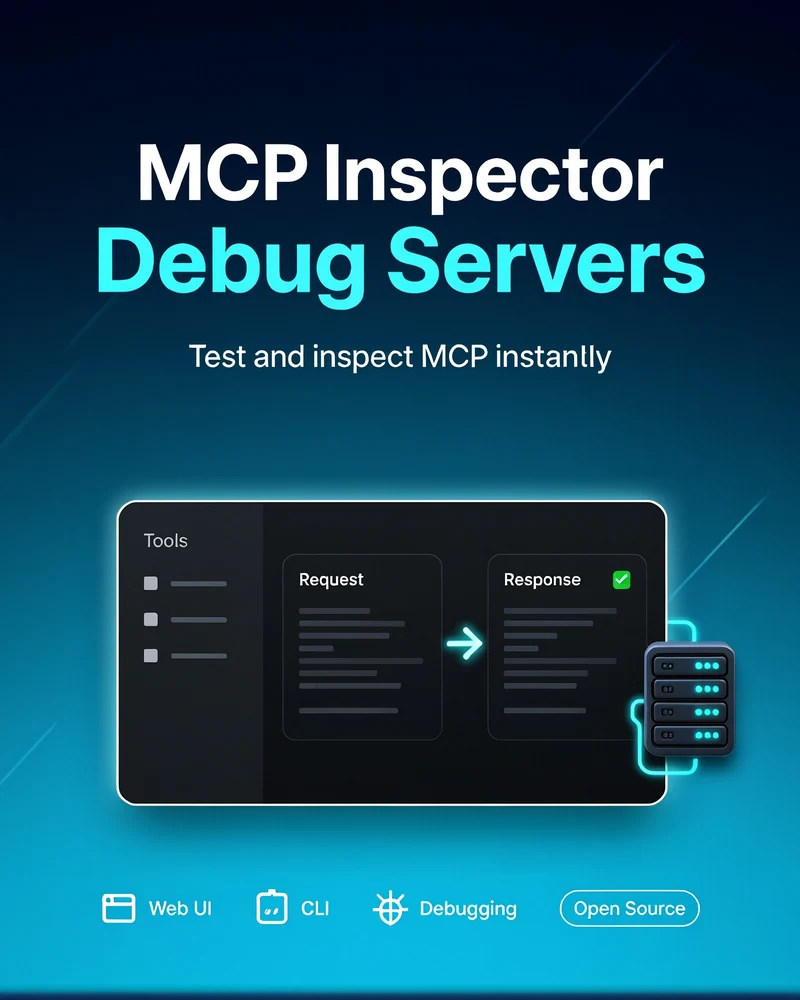
Inspect MCP Servers with Inspector
The Model Context Protocol (MCP) Inspector is a powerful tool for developers, providing multiple ways to debug and test MCP servers. This guide walks you through installation, setup, and getting started.
What is <name>?
The Model Context Protocol (MCP) Inspector is a developer tool designed to help you inspect and debug Model Context Protocol (MCP) servers. It offers multiple interfaces – Web, CLI, TUI, and mcpdo – making it versatile for various workflows.
This tool is invaluable for developers building agents that interact with MCP servers. By providing insights into server behavior and allowing for targeted testing, the Inspector streamlines the development process and improves agent reliability.
Who is it for?
- MCP server developers
- Agent developers
- Testers and QA engineers
- Anyone needing to debug or test MCP servers
Minimum requirements
- Operating System: Windows, Linux, or macOS
- GPU & VRAM: Estimated 4GB VRAM for optimal performance (but can run on CPU)
- RAM: Minimum 8 GB RAM recommended.
- Free Disk Space: Approximately 200 MB for installation and dependencies.
- Required Software:
- - Python 3.9 or higher
- - Git
- - CUDA (if GPU acceleration is desired)
Installation, step by step
Before you begin, ensure you have Git and Python installed. You can download them from the official websites: Git (https://git-scm.com/downloads) and Python (https://www.python.org/downloads/). To open a terminal on Windows, search for 'cmd' or 'PowerShell'. On macOS, use 'Terminal' (located in /Applications/Utilities). On Linux, you can usually find it in your applications menu.
- Install Git: If not already installed, follow the instructions on the Git website.
- Install Python: Download and install Python 3.9 or higher from python.org. Make sure to check 'Add Python to PATH' during installation.
- Open your terminal (cmd, PowerShell, Terminal).
- Clone the repository: git clone https://github.com/modelcontextprotocol/inspector
- Navigate into the project directory: cd inspector
- Install dependencies: npm install
On Linux or macOS, you may need to use sudo npm install -g @modelcontextprotocol/inspector to install the global binaries if you encounter permission issues. However, using npx is generally recommended as it avoids global installations.
Your first run
To confirm the Inspector is working correctly, try launching the web interface. In your terminal, type npx @modelcontextprotocol/inspector. This will start a local server and open the Inspector's web UI in your default browser.
Common problems
- Out of Memory: If you encounter 'out of memory' errors, try increasing the available RAM or reducing the complexity of your MCP server configuration.
- Missing CUDA: Ensure that CUDA is correctly installed and configured if you are using GPU acceleration. Verify your NVIDIA drivers are up to date.
- Wrong Python Version: The Inspector requires Python 3.9 or higher. Double-check your Python version with python --version.
- Permission Errors: On Linux/macOS, use sudo npm install -g @modelcontextprotocol/inspector if you have permission issues during installation.
Links
You can find the full repository URL here: https://github.com/modelcontextprotocol/inspector. For detailed documentation and more information, visit https://modelcontextprotocol.io/docs/2026-07-28/tools/inspector.