ChatR Labs Uncensored Omni LoRA v0.1 — for Qwen-Image-2.1
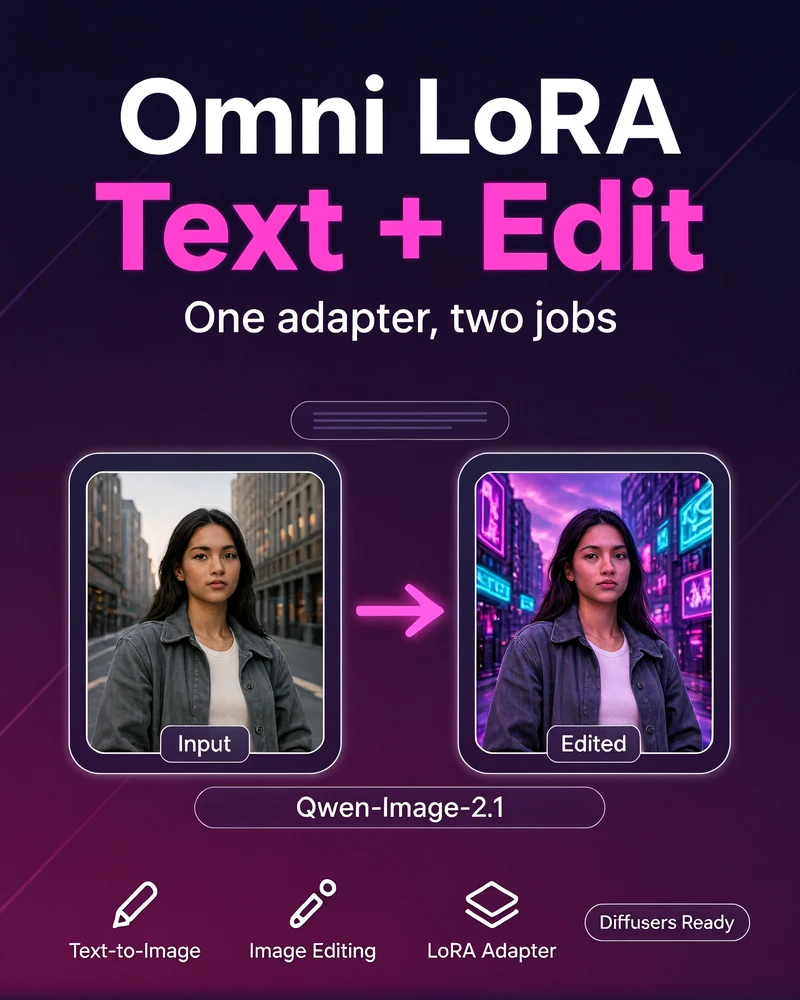
Create images from text or transform existing images with natural-language instructions using this experimental adapter fine-tuned from Qwen/Qwen-Image-2.1. This guide walks you through installation, usage and troubleshooting.
What is <name>?"
ChatR Labs Uncensored Omni LoRA v0.1 is an experimental adapter fine-tuned from Qwen/Qwen-Image-2.1, designed for both text-to-image generation and image editing using a single adapter. It’s part of the larger Qwen ecosystem.
This LoRA (Low-Rank Adaptation) allows you to modify existing images or create new ones from text prompts, offering flexibility in your image generation workflow. The download contains only the adapter weights; you’ll need to load it on top of the original Qwen-Image-2.1 base model.
Who is it for?
- AI artists and creators
- Researchers exploring image generation models
- Users of Qwen-Image-2.1 looking to expand its capabilities
- Anyone interested in experimenting with LoRA adapters for text-to-image tasks
Minimum requirements
- Operating System: Windows, Linux or macOS (estimated)
- GPU: NVIDIA GPU with at least 16 GB VRAM (recommended for optimal performance; 8GB may be sufficient with CPU offload)
- RAM: 32 GB minimum (more is recommended, especially if using CPU offload)
- Free Disk Space: At least 20 GB (for base model and adapter files)
- Required Software: Python 3.9 or higher, Git, CUDA Toolkit (if using NVIDIA GPU)
Installation, step by step
Before you begin, ensure you have Python installed. You can download it from the official Python website: https://www.python.org/downloads/. Also install Git for version control: https://git-scm.com/downloads.
To open a terminal or command prompt, search for 'cmd' (Windows) or 'Terminal' (macOS). On Linux, you can typically find it in your applications menu.
- Install Python dependencies: pip install -r requirements.txt (This command installs all the necessary libraries listed in the requirements.txt file.)
- Clone the repository: This step is not required as you only need to download the LoRA weights.
- Download the LoRA weights: Download 'chatrlabs-omni-lora-v0.1-bf16.safetensors' from [https://huggingface.co/chatrlabs/Qwen-Image-2.1-Uncensored-Omni-LoRA-v0.1/resolve/main/chatrlabs-omni-lora-v0.1-bf16.safetensors?download=true' and 'chatrlabs-omni-turbo-8step-fp32.safetensors' from [https://huggingface.co/chatrlabs/Qwen-Image-2.1-Uncensored-Omni-LoRA-v0.1/resolve/main/chatrlabs-omni-turbo-8step-fp32.safetensors?download=true'
- Download Qwen/Qwen-Image-2.1: You need to download the base model separately from https://huggingface.co/Qwen/Qwen-Image-2.1
On Linux and macOS, the commands are generally the same as Windows.
Your first run
To confirm everything is working correctly, use the provided example code from inference.py with a simple prompt like 'A blue ceramic mug on a wooden table'. Save the generated image to verify that the model can create images based on your instructions.
Common problems
- Out of Memory (OOM): Reduce the image resolution or use CPU offload to free up GPU memory.
- Missing CUDA: Ensure you have a compatible NVIDIA GPU and the correct CUDA Toolkit installed. Verify that PyTorch is configured to use your GPU.
- Incorrect Python Version: The model requires Python 3.9 or higher. Check your Python version with python --version.
- LoRA Not Loaded Correctly: Double-check the path to the LoRA weights file and ensure it's being loaded correctly in your script.
Links
You can find the repository on Hugging Face: https://huggingface.co/chatrlabs/Qwen-Image-2.1-Uncensored-Omni-LoRA-v0.1. The base model, Qwen/Qwen-Image-2.1, is available here: https://huggingface.co/Qwen/Qwen-Image-2.1.