AI Video Factory: Turn Topics into YouTube Videos with AI
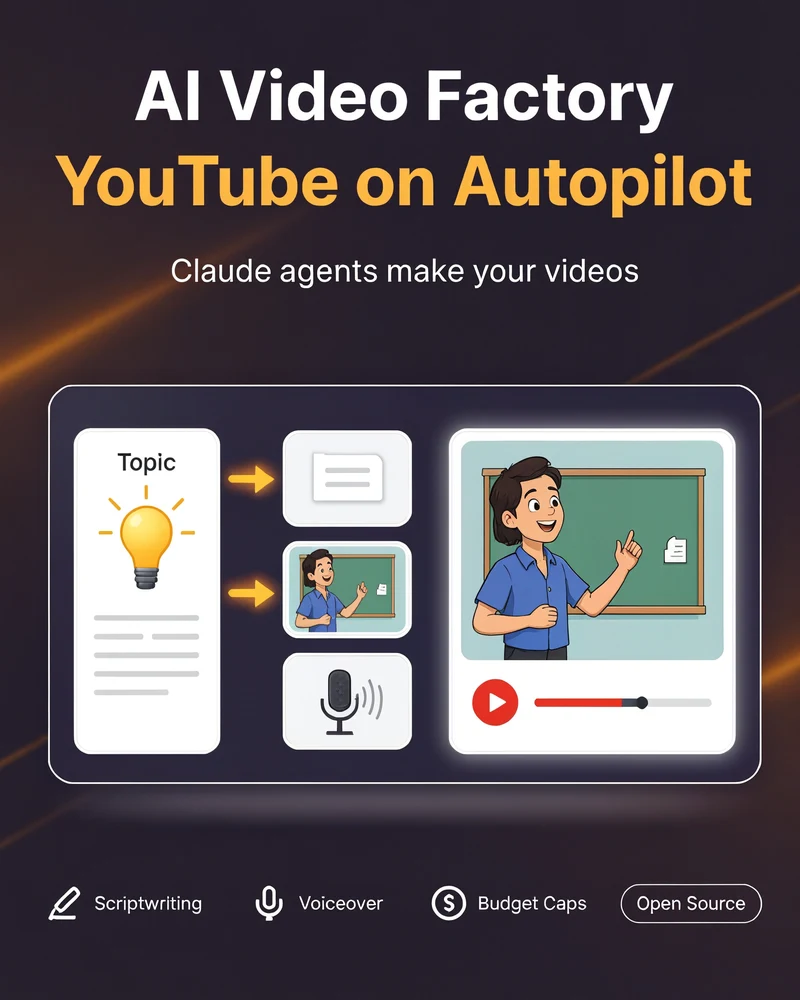
AI Video Factory is an open-source tool that uses Claude agents to automate the creation of narrated, animated YouTube videos. From scriptwriting and drawing to voiceovers and rendering, this platform streamlines video production.
What is AI Video Factory?
AI Video Factory is an open-source project designed to simplify the process of creating narrated, animated YouTube videos. It leverages Claude agents to handle various tasks, including scriptwriting, shot planning, vector art design, and review. The goal is to automate much of the video production workflow, making it more efficient and accessible.
The platform provides a web Studio interface that allows users to oversee the entire process, providing approvals at key stages. It supports multiple visual styles and languages, offering flexibility in creating engaging video content for diverse audiences. It’s designed to be cost-aware, tracking API usage and allowing budget caps.
Who is it for?
- Content creators looking to automate video production.
- Educators wanting to create engaging educational videos.
- Marketers aiming to produce promotional content efficiently.
- Anyone interested in experimenting with AI-powered video creation.
Minimum requirements
- Operating System: Windows, Linux, or macOS (estimated)
- GPU: NVIDIA GPU with at least 8GB VRAM (recommended for faster rendering; CPU rendering is possible but slower).
- RAM: 16GB minimum (32GB recommended).
- Free Disk Space: 50GB minimum (for project files, dependencies, and generated assets).
- Software:
- - Node.js 24+
- - pnpm 11
- - Git
- - FFmpeg
- - CUDA Toolkit (if using an NVIDIA GPU)
Installation, step by step
Before you begin, ensure you have Node.js 24+, pnpm 11, Git and FFmpeg installed on your system. You'll also need an Anthropic API Key or a signed-in Claude Code installation.
- Open a terminal (Command Prompt on Windows, Terminal on macOS/Linux).
- Clone the repository: git clone https://github.com/ersinkoc/AI-Video-Factory.git - This downloads all the project files to your computer.
- Navigate into the newly created directory: cd AI-Video-Factory - This changes your current location in the terminal to the project folder.
- Install dependencies: pnpm install - This command reads the package.json file and installs all the necessary libraries and tools for the project.
- Copy the example environment file: cp .env.example .env (Windows: Copy-Item .env.example .env) - This creates a configuration file where you can store your API keys and other settings.
On Linux/macOS, the commands are generally the same as above. On Windows, use PowerShell for the Copy-Item command.
Your first run
To confirm everything is working correctly, start the Studio: pnpm studio. This will launch a local web server. Open <http://localhost:3100> in your browser to access the AI Video Factory Studio interface.
Common problems
- Out of Memory: Increase your system's RAM or reduce the video resolution. Rendering large videos can be memory-intensive.
- Missing CUDA: Ensure you have a compatible NVIDIA GPU and the correct CUDA Toolkit version installed for your graphics card driver.
- Wrong Python Version: AI Video Factory requires Node.js 24+. Verify that your environment is configured correctly.
- API Key Issues: Double-check that your Anthropic API key is valid and properly entered in the .env file.
Links
You can find more information and documentation on the AI Video Factory GitHub repository: https://github.com/ersinkoc/AI-Video-Factory. Explore the README for detailed instructions, tutorials, and troubleshooting tips.